Invite recruiters to your agency
Send an invitation, choose a role, and manage or remove team members.
By the end a recruiter has an invitation to join your agency, with the role you chose.
Owners and admins can open Team. Staff cannot.
The roles
Owner: manages billing, the team and branding.
Admin: manages the team and branding.
Staff: does the daily work with candidates, tailoring, presets and exports.
Only an owner can invite an admin or make someone an owner. An admin can invite Staff.
Send an invitation
Select Team in the left menu.
Under Invite a teammate, enter Their email.
Choose their Role.
Select Send invitation.
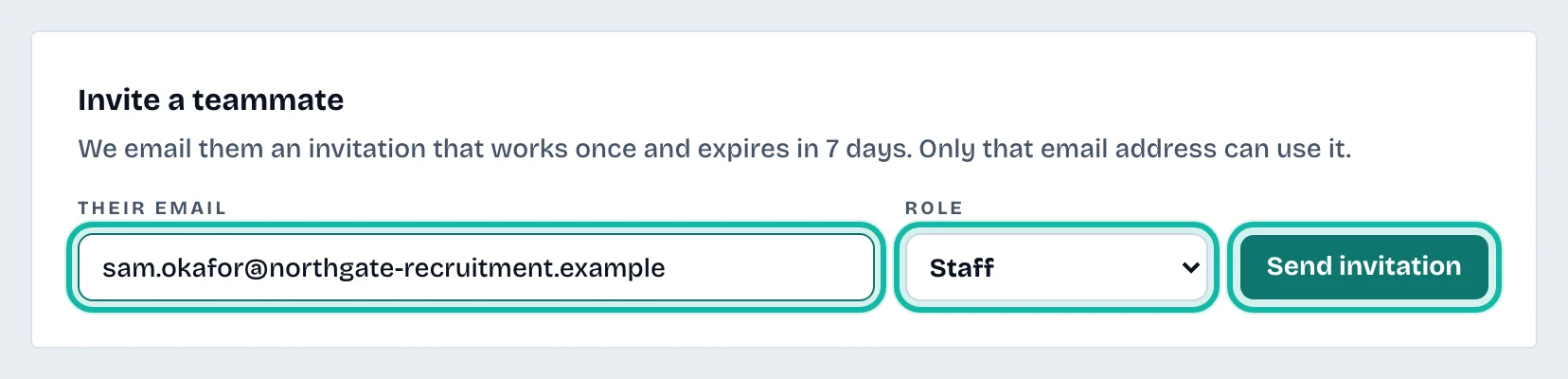
We email them a link that works once, expires in 7 days and works only for that email address. If the email could not be sent, or they cannot find it, copy the link shown on screen with Copy link and send it yourself. It is shown only once.
The invited person needs a business account. A personal account cannot accept it; see Business accounts and personal accounts. They open the link and select Join with your agency name.
Change a role, remove someone, cancel an invitation
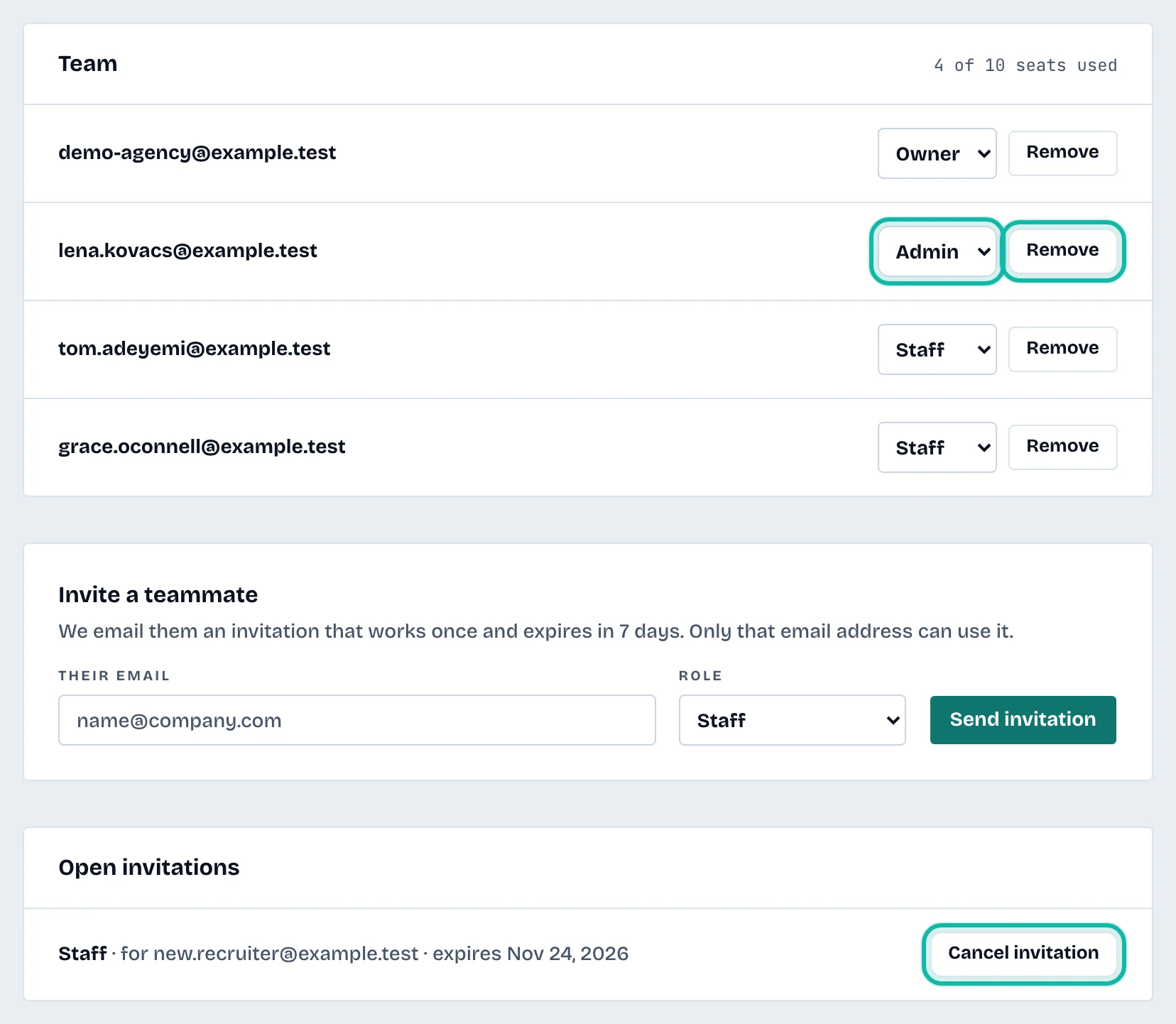
Under Team, change someone's role in the list next to their email. A message says Role updated.
Select Remove to take someone out. They lose access straight away.
Under Open invitations, select Cancel invitation to withdraw one not yet used.
What if…
It says every seat is taken? The seat count (for example "2 of 3 seats used") comes from your plan. Remove someone or change plan under Billing. See Billing and your plan.
The invitation form is missing? Invitations open once the agency has an active plan or trial.
The link says it cannot be used? It was already used, cancelled or has expired. Send a new invitation.