Prepare an export for a client
Choose a design, hide the candidate's contact details, check the preview and download a PDF or Word file.
By the end you have a branded PDF or Word file for a client, with the details you chose to hide removed.
Open the candidate (the original or a tailored copy) and select Prepare export. Settings are on the left and the Preview is on the right. The preview updates as you change a choice and uses no credits.
Pick a design
Under Design, read the current design, then select Change design.
In Choose a design, pick an agency layout, or a BrighterResume design.
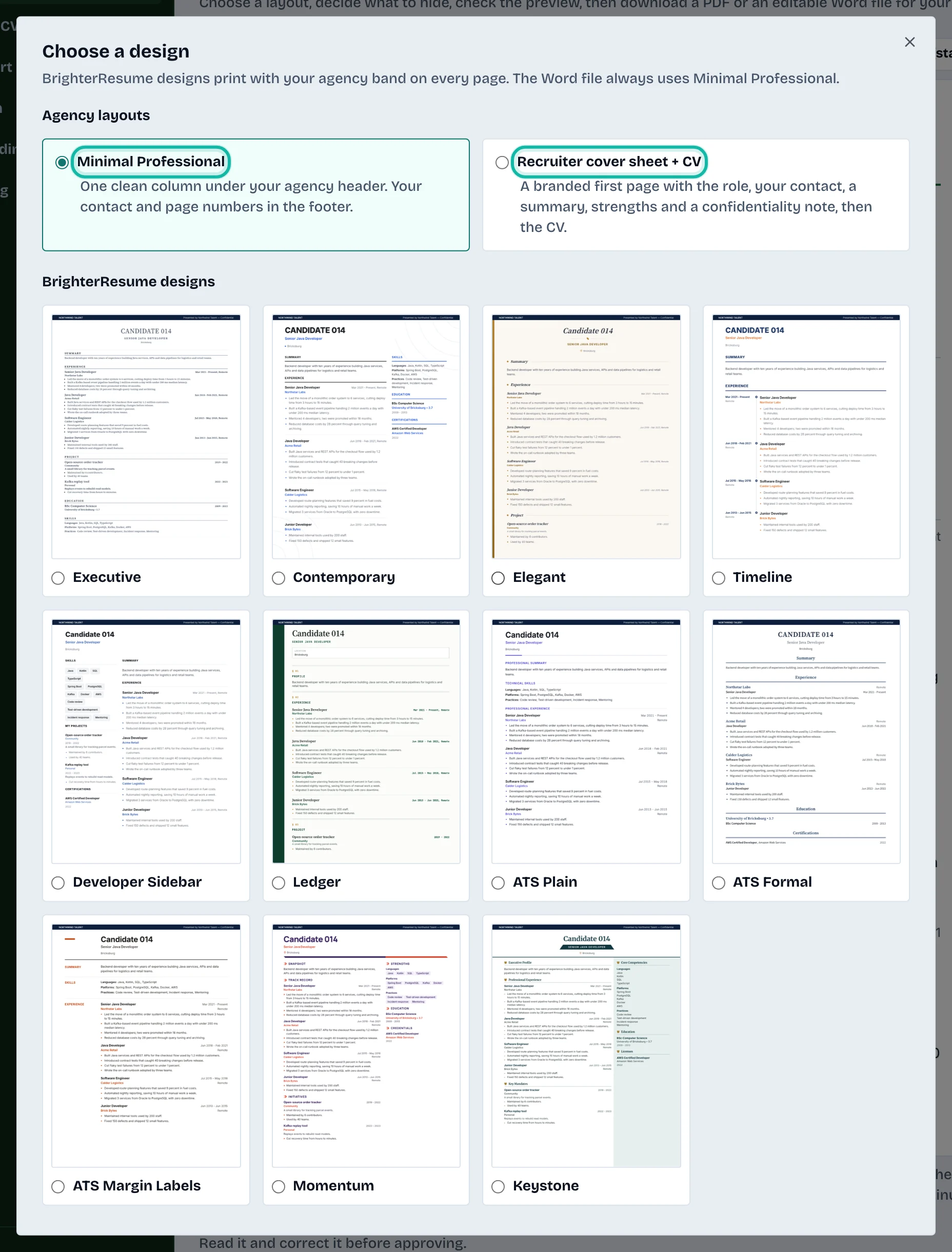
The two agency layouts are Minimal Professional (one clean column under your agency header) and Recruiter cover sheet + CV (a branded first page with the role, your contact, a summary, strengths and a confidentiality note, then the CV). BrighterResume designs print with your agency band on every page. The Word file always uses Minimal Professional.
Hide the candidate's details
Find Hide direct identifiers.
Keep ticked what you want removed: Name, Email, Phone, Street address (city is kept), LinkedIn and personal links, Photo. All are ticked to begin with.
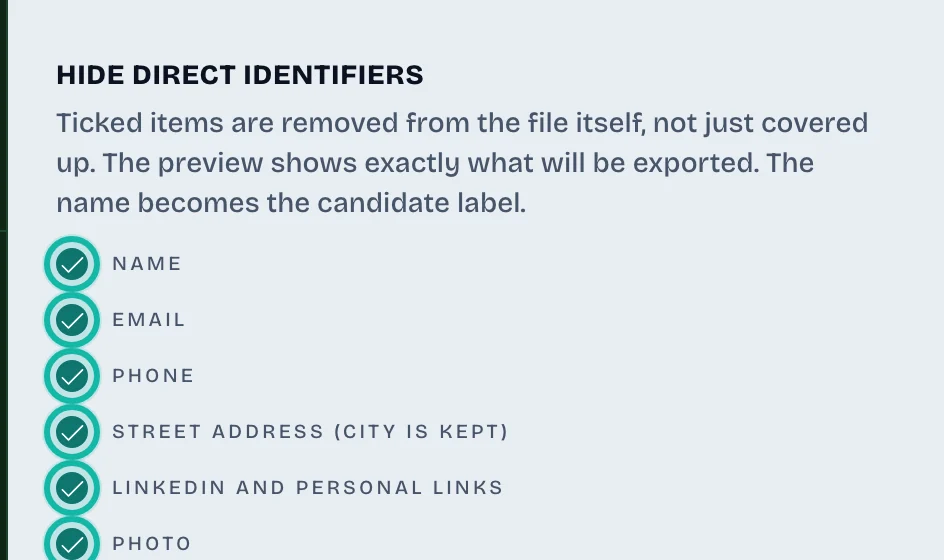
Check the Preview. Ticked details are removed from the file itself, not covered up. The name becomes the candidate label.
If you untick everything, Nothing is hidden appears: the name and contact details will be in the export.
This is separate from Your agency details, where the option to show your agency's logo (it names your agency) and Show recruiter contact add your own logo and contact (set under Branding; see Set up your agency branding).
Optional extras
Role presented for: the role shown on the cover sheet layout.
Section headings: rename headings, for example "Career history". Only the printed label changes.
Watermark: add a confidential line at the top of every page.
Summary (optional): write one, or select Draft from the CV. A draft uses only facts in the CV. Read and edit it, then tick the approval box. It is only included once approved.
Download
Select PDF or Word (editable).
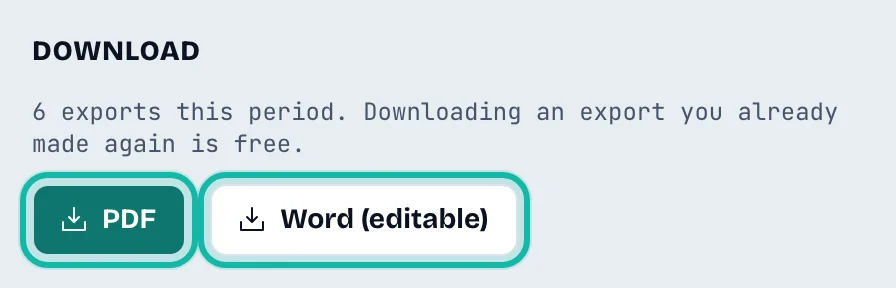
Each new export counts toward your plan's exports for the period. Under Exports of this CV, Download again fetches an earlier export for free. See the pricing page for allowances.
Reuse your choices
To save the design, hiding and headings for a client, select Save these choices as a preset at the top. See Create and manage export presets.
What if…
The downloads are disabled? You have a summary that is not approved. Approve it or clear it. Downloads are also disabled when the plan is not active.
Logo or contact options are greyed out? None is set yet. Add them under Branding.
I want to check what was hidden? Use Compare an export with the original.