Find your way around the dashboard and side panel
What each item in the side panel and top bar does, and where your résumés, jobs and credits live.
By the end of this article you know where everything is, so you can reach any part of the app in one step.
After you sign in, you land on My Resumes, titled Your resumes. The side panel on the left is on every page.
The side panel
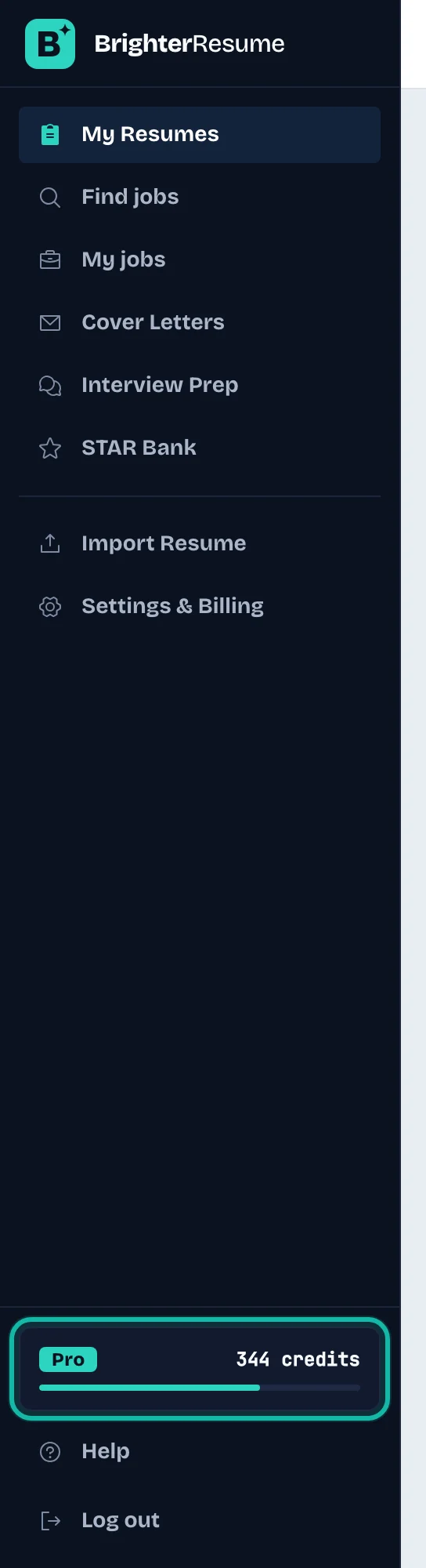
The first group holds your everyday work:
My Resumes: every résumé you have, with its tailored copies. See Manage My résumés.
Find jobs: search company job boards and job feeds. See Find jobs.
My jobs: the jobs you saved or applied to, as a table or a board.
Cover Letters: all your letters in one list.
Interview Prep: your practice sessions.
STAR Bank: your interview stories.
The second group holds Import Resume and Settings & Billing. At the bottom, the card shows your plan and how many credits you have left. Select it to open billing. Log out sits under it.
The top bar
Select the menu icon to hide or show the side panel. On a phone, the same icon opens it as a drawer.
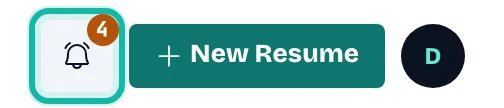
Use the bell for notifications. It shows reminders that are due and any feedback your coach left.
Select New Resume to start a blank résumé.
Select the round icon with your initial to open billing.
Reminders on the dashboard
If you set a reminder on a job, it appears as a card at the top of My Resumes on the day it is due, with a Mark done button. See Track applications and set reminders.
What if…
I do not see my coach's tools? They appear only after you accept an invitation from a coach. See Share a résumé with a coach.
A banner says to verify my email? Open the link we sent you. Until you do, AI features and free credits stay locked. See Create an account and sign in.